
1. Overview
TradexCodez AIO OCT (All-In-One One-Click Trader) turns any MT5 chart into a trading desk for that instrument. You set your quantity, stop and target once, then buy or sell with a single click — and the panel places your protection for you the moment the entry fills. Your stop and target appear as lines on the chart, your running profit appears on the panel, and one button closes everything this chart opened. Orders are sent to your broker through the TradexCodez Bridge running on your computer — nothing is simulated inside MT5.
It works on equity, futures, options and commodities, and on five Indian brokers, with the same panel and the same buttons.
1.1 What you need
| # | Requirement | Details |
|---|---|---|
| 1.1 | MT5 terminal | With the TradexBridgeData EA running (this is your live data feed) |
| 1.2 | TradexCodez Bridge | The bridge for your broker — Zerodha Kite Connect at launch; Angel One, Flattrade, Shoonya, Dhan and Fyers in final testing — connected with your broker's API and up to date |
| 1.3 | TradexCodez AIO OCT EA | Attached on the chart of the instrument you want to trade |
| 1.4 | MT5 settings | Keep 'Allow Algo Trading' and 'Allow DLL imports' turned ON. Both are required for the data feed and the panel to work — do not switch them off |
| 1.5 | Connection | Bridge address 127.0.0.1, port 5556 (defaults — change only if you changed them in the bridge) |
When the EA starts it checks the bridge. The status line shows Bridge online (PONG) when everything is connected.
2. Panel tour
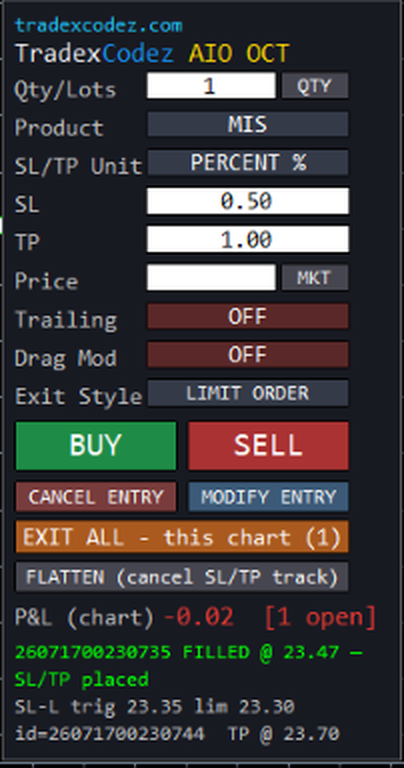
Figure 1 — the full panel: settings, entry, exits, live P&L and the status lines.
| Control | What it does |
|---|---|
| Qty/Lots + QTY / LOTS | The number you trade, and how it is read. In LOTS the bridge multiplies by the contract lot size for you. On F&O and commodity charts the panel starts in LOTS automatically |
| Product | MIS, NRML or CNC. Click to cycle. The bridge corrects it if the segment does not allow your choice |
| SL/TP Unit | PERCENT % or POINTS — how your stop and target numbers are read |
| SL / TP | Your stop-loss and target. Type before you click BUY or SELL. Shows NA if that leg is switched off in the inputs |
| Price + MKT / LMT | Leave blank for a market entry, or type a price and switch to LMT for a resting entry |
| Trailing | ON/OFF. When on, the stop follows price in your favour and never moves backwards |
| Drag Mod | ON/OFF. When on, you can drag the stop and target lines on the chart to modify the live orders |
| Exit Style | LIMIT ORDER or MARKET ORDER — the single most important setting on the panel. See section 5 |
| BUY / SELL | Sends the entry, then places your stop and target the moment it fills |
| CANCEL ENTRY / MODIFY ENTRY | Cancels or re-prices an entry that is still working (not yet filled) |
| EXIT ALL (this chart) | Closes everything this panel opened on this chart. The number in brackets is how many legs it is tracking |
| FLATTEN (cancel SL/TP track) | Stops tracking without touching the broker. Your orders and positions stay exactly as they are |
| P&L (chart) | Live profit for what this chart opened, with the open-leg count. See section 8 |
| Status lines | Up to four lines of plain-English feedback — the last thing the panel did, and why |
3. Input reference
| Input | Default | What it does |
|---|---|---|
InpHost / InpCmdPort | 127.0.0.1 / 5556 | Where the bridge is listening |
InpTimeoutMs | 4000 | How long to wait for a bridge reply (milliseconds) |
InpQty | 1 | The number you type in Qty/Lots — read as quantity or as lots depending on the mode button |
InpStartInLots | false | Start the panel in LOTS mode instead of QTY |
InpAutoDerivMode | true | On NFO / BFO / MCX charts, start automatically in LOTS with MARKET-style exits |
InpDebounceSec | 2 | Ignores an accidental repeat BUY/SELL inside this window. 0 = off |
InpFillTimeoutSec | 300 | Cancels a pending entry that has not filled within this time. 0 = wait forever |
InpProduct | MIS | MIS (intraday), NRML (carry forward) or CNC — auto-corrected by the bridge if the segment does not allow it |
InpDefaultMode | PERCENT | Stop/target units: percent of entry price, or premium points |
InpDefaultSL / InpDefaultTP | 0.50 / 1.00 | Starting stop-loss and target values shown in the panel |
InpSendSL / InpSendTP | true / true | Whether a stop-loss and/or target is placed at all. Switch one off and its box shows NA |
InpDrawLines | true | Draw the entry, stop, target and trail lines on the chart |
InpDragModify | false | Allow dragging the stop/target lines to modify the live orders. Off by default on purpose |
InpDragMinGapPts | 0.0 | Minimum gap a dragged line must keep from the live price (0 = one tick) |
InpExitOrderType | LIMIT | Exit style — LIMIT (real resting orders at your broker) or MARKET (the EA watches every tick and fires on touch). See section 5 |
InpEntryLimit | false | Start the entry type as LIMIT instead of MARKET |
InpSLLimitBufPct | 0.20 | How far past your level the resting stop/target limit is placed (%), so it fills when touched |
InpMktExitBufPct | 1.00 | A wider buffer used by MARKET-style exits so the closing order fills like a market order |
InpEntryProtect | true | Converts a MARKET entry into a protected LIMIT so you never fill at a runaway price |
InpEntryProtPct | 0.30 | How far past the touch price that entry protection allows (%) |
InpTickSizeFallback | 0.05 | Tick size used if the symbol reports none |
InpTrailEnabled | false | Enable the trailing stop (also a panel button) |
InpTrailStartPts | 1 | Trail step in points/rupees. The trailing gap stays the same as your original stop distance |
InpTrailAutoStep | true | Use the symbol's own tick size as the trail step instead of the value above |
InpAutoSqOff | false | Enable auto square-off. Off by default — see section 9 |
InpSqOffTime | "15:15" | Square-off time HH:MM on the terminal PC's own clock (24-hour) |
InpPanelX / InpPanelY | 20 / 40 | Panel position on the chart |
4. Placing your first trade
The order is always the same, and it takes about five seconds:
1. Set Qty/Lots, and check the QTY / LOTS button reads what you intend. 2. Choose your Product (MIS for intraday, NRML to carry). 3. Pick your SL/TP Unit, then type your SL and TP. 4. Choose your Exit Style — read section 5 first if you are unsure. 5. Leave Price blank for a market entry, or type a price and switch to LMT. 6. Click BUY or SELL.
The panel sends the entry and watches it. The moment it fills, your stop and target are placed automatically and the
lines appear on the chart. Until it fills you can press MODIFY ENTRY to re-price it, or CANCEL ENTRY to
withdraw it — and if it never fills, the panel cancels it for you after InpFillTimeoutSec and tells you so.
Market entries are protected. With InpEntryProtect on, a market entry is converted into a limit
order placed a little past the touch price, so a thin order book can never fill you at a runaway price.
5. Exit style — the most important setting
Everything else on the panel is preference. This one decides whether your stop-loss still exists when your computer does not. Click Exit Style to change it.
| LIMIT ORDER (default) | MARKET ORDER | |
|---|---|---|
| Where your stop lives | A real resting order at your broker | In the EA — it watches every tick and fires when touched |
| If MT5 or your PC closes | Still protected — the order is at the exchange | Not protected — nothing is resting at the broker |
| If your internet drops | Still protected | Not protected for as long as ticks are missing |
| Fill certainty in a fast move | Fills at your level if the market trades there | Fires a fresh order on touch, so it chases the market |
| Best for | Anything you cannot watch continuously | Illiquid strikes where a resting order would sit unfilled |
In plain words: with LIMIT, your stop is a real order sitting at the exchange — it survives MT5 closing,
your PC restarting and your internet dropping. With MARKET, your stop is the EA watching ticks: close MT5, lose
your feed, or reload the EA and there is nothing between you and the market. Note that F&O and commodity charts
start in MARKET style automatically when InpAutoDerivMode is on — so on option charts, check this button
before you trade, and switch to LIMIT for anything you intend to leave unattended.
6. Automatic protection, trailing and dragging
Type your stop and target before you click BUY or SELL, and choose whether they are read as percent of your entry price or as points. When the entry fills, both are placed for you and drawn on the chart. If one of them is hit the other is cancelled automatically, and the trade is booked — you never end up with a leftover order that could open a fresh position by itself.
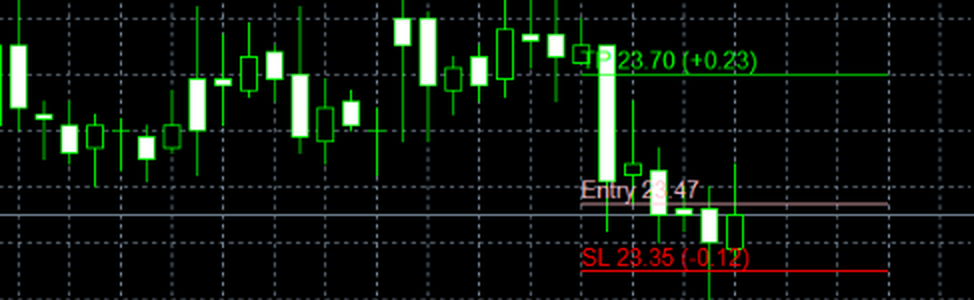
Figure 2 — your trade on the chart: target in green, entry in grey, stop in red, each with its live distance.
Trailing. Switch Trailing ON and the stop follows the price in your favour, keeping the same distance
it started with, and never moves backwards. Set the step in InpTrailStartPts, or let
InpTrailAutoStep use the symbol's own tick size.
Drag Mod. Switch Drag Mod ON and you can drag the stop or target line on the chart to modify the live order — no typing. It is OFF by default so a stray mouse drag can never move a real stop. Dragging a line onto or past the current price is treated as “get me out now” and closes the trade immediately.
7. Working across several charts
Attach the panel to as many charts as you like — one per instrument. Each panel keeps its own list of what it opened on that chart, so EXIT ALL, the P&L line and auto square-off on one chart never reach across to another. You can also stack several entries on the same chart: each one gets its own stop and target, and the panel tracks them all, showing the count in the EXIT ALL button.
A netting note. Indian positions are netted per contract, so buying and then selling the same contract simply closes your position — you cannot hold a long and a short of the same symbol at once. For a genuinely two-sided position, use two different instruments (two strikes, or a call and a put) on two charts.
8. EXIT ALL, FLATTEN and the live P&L
EXIT ALL (this chart) is your fire escape. It cancels every stop and target this panel placed on this chart, nets what is left, and sends the closing order — one click, whatever you have stacked up. It deliberately touches only what this panel opened on this chart. If a closing order is rejected, the panel says so and keeps those legs open rather than pretending they are closed.
FLATTEN (cancel SL/TP track) closes nothing. It only tells the panel to stop tracking — your orders and positions stay exactly as they are at the broker. Use it when you want to take over manually.
P&L (chart) is your running profit for what this chart opened, updated live, with the number of open legs beside it. It is gross — brokerage, taxes and other charges are not included, so your contract note remains the final word. When an exit fires you may briefly see a ~: the panel is waiting for the broker's actual average fill price so it can correct the figure to the paisa, and it clears itself within a few seconds.
Closed somewhere else? If your position is closed outside the panel — broker app, another tool, or a close-all script — the panel notices within a couple of seconds, removes the lines and resets itself, so you never look at a phantom trade.
9. Auto square-off
Switch InpAutoSqOff ON and set InpSqOffTime (default 15:15) and the panel closes what
this chart opened at that time, every trading day. Every chart arms its own timer and squares off only its own trades,
so several charts need no coordination.
It is OFF by default, because an automation that closes positions should never surprise you. Three things worth knowing: it uses your PC's own clock (so set a VPS to IST — tick time can freeze exactly when the feed dies); a still-working entry is cancelled first, so it cannot fill at 15:29 unprotected; and if a closing order fails it retries every 30 seconds for 15 minutes, then shouts in red rather than failing quietly. The armed time is printed to the Experts log when the EA starts, so you can confirm it at a glance.
10. Paper trading
The bridge can run in paper mode, and the panel behaves identically — same buttons, same stops, same EXIT ALL, same P&L — with orders simulated on the bridge instead of being sent to your broker. It is the safe way to learn the panel before trading live. Live or paper is decided by the bridge, so the panel always reflects whatever mode the bridge is in.
11. What survives a restart
Worth reading once, because it decides how you should trade with the panel. Everything at your broker — positions, pending entries, and resting stop/target orders — is safe no matter what happens on your computer. What lives inside the EA is what you can lose.
| What | Network drops & returns | Bridge restarts | Timeframe change | EA reload / MT5 restart |
|---|---|---|---|---|
| Your open position | Safe | Safe | Safe | Safe |
| Pending (unfilled) entry | Safe | Safe | Safe | Safe |
| Stop / target — LIMIT style | Safe | Safe | Safe | Safe at broker, but no longer tracked |
| Stop — MARKET style | Paused | Paused | Safe | Lost |
| Trailing stop | Paused | Paused | Safe | Lost (stop stays where it was) |
| Panel P&L and leg count | Paused | Paused | Safe | Reset to zero |
| EXIT ALL / auto square-off | Paused | Paused | Safe | Cannot see earlier trades |
Network drops. Nothing to do — the panel opens a fresh connection for each command, so the next click after your internet returns simply works. While it is down, commands fail safely rather than doing something half-finished.
The one to remember. After an EA reload or an MT5 restart, the panel no longer knows about trades it opened earlier — EXIT ALL and auto square-off cannot see them, and if you were on MARKET exit style your stop is gone entirely. Use your broker app for anything opened before the reload, and prefer LIMIT exit style for trades you leave unattended.
12. Troubleshooting
| What you see | What it means and what to do |
|---|---|
Bridge NOT reachable. Check it's running. | The bridge program is not running, or the host/port does not match. Start the bridge and re-attach the EA |
Bridge online (PONG). | Everything is connected. This is the message you want at startup |
BRIDGE 4.26-FT < 4.33 — update bridge | The panel refuses new entries until the bridge reports a version that owns protection orders. Update that broker's bridge, then trade — no need to re-attach |
Bridge version unconfirmed — ORDER refused | The bridge did not answer the version check. It re-checks every 10 seconds by itself; if it persists, restart the bridge |
Ignored (debounce 1/2s) | You clicked twice quickly — the second click was ignored on purpose |
Busy: waiting for previous entry to fill | An entry is still working. Wait for it, or press CANCEL ENTRY |
Auto-cancelled. No SL/TP placed. | Your entry did not fill inside InpFillTimeoutSec, so it was cancelled and nothing was left behind |
MARKET mode: fire on touch. SL … TP … | Normal for MARKET exit style — your protection is the EA watching ticks, not a resting order. Read section 5 |
OCO: SL hit — TP cancelled | Your stop filled and the target was cancelled automatically. The trade is closed and booked |
Closed externally — panel reset | The position was closed outside this panel (broker app or a close-all script). The panel cleared its lines and reset by itself |
EXIT ALL partial: 1/2 leg(s) closed — press again | One closing order was rejected — usually margin or a frozen symbol. The legs that failed are still open; fix the cause and press again |
EXIT FAILED TWICE — manual action needed! | The panel could not close the position. Go to your broker app and close it manually now |
AUTO-SQOFF FAILED — exit manually! | Auto square-off retried for 15 minutes and gave up with legs still open. Close them in your broker app |
No tracked trades on this chart | This panel is not tracking anything — for example after an EA reload. Use your broker app for older positions |
P&L shows a trailing ~ | The exit fired and the panel is waiting for the broker's actual fill price to correct the profit. It clears within a few seconds |
No price feed | No live quote for this symbol, so the panel cannot size an order. Check the TradexBridgeData feed |
13. Frequently asked questions
Does the EA place orders inside MT5?
No. MT5 is your screen; every order travels through the TradexCodez Bridge straight to your broker. What you see in your broker app is the truth.
Which brokers are supported?
At launch, Zerodha Kite Connect. Support for Angel One, Flattrade, Shoonya, Dhan and Fyers is built and in final testing, releasing progressively. Each licence is configured for one broker of your choice.
What is the difference between QTY and LOTS?
In QTY the number you type is sent as-is. In LOTS the bridge multiplies it by that contract's lot size, so 2 lots of a 75-lot option becomes 150. On F&O and commodity charts the panel starts in LOTS by itself.
Which exit style should I use?
LIMIT for anything you cannot watch continuously — the stop is a real order resting at your broker and survives your PC, MT5 and your internet. MARKET only for illiquid strikes, and only while you are at the screen.
What happens to my stop if MT5 or my PC restarts?
With LIMIT exit style the stop is at your broker and stays live. With MARKET exit style the stop only ever existed inside the EA, so it is gone — the position becomes unprotected. See section 11.
Can I run the panel on several charts at once?
Yes — one panel per chart. Each panel tracks only its own chart, so EXIT ALL and auto square-off on one chart never touch another.
Why does EXIT ALL say “this chart”?
Because it only closes what this panel opened on this chart. Positions taken on another chart, in your broker app, or before the EA was attached are deliberately left alone.
What is the difference between EXIT ALL and FLATTEN?
EXIT ALL closes your position. FLATTEN closes nothing — it only makes the panel stop tracking, leaving your orders and positions untouched at the broker.
Can I hold a buy and a sell on the same contract at the same time?
No — Indian F&O and equity positions are netted per contract, so a sell simply closes your buy. For a two-sided position use two different instruments (different strikes, or a call and a put) on two charts.
Why did the panel refuse my order and mention a bridge version?
Protection orders are managed by the bridge, so the panel checks the bridge version before it will trade. Update that broker's bridge; the panel re-checks every 10 seconds and unlocks by itself.
Is the P&L on the panel my final profit?
No. It is gross profit from live prices and does not include brokerage, taxes or other charges. Your broker's contract note is always the final word.
What is the small ~ next to the P&L?
It means an exit has fired and the panel is waiting for the broker's actual average fill price so it can correct the number to the paisa. It disappears on its own.
Does auto square-off run on every chart?
Yes, if you switch it on — each chart squares off only its own trades at the time you set. It is OFF by default so it can never close a position you meant to carry.
14. Custom development by TradexCodez
Everything in this guide was built in-house — and we build for clients too. If you can describe your edge, we can code it:
| Service | What we deliver |
|---|---|
| Custom indicators | Your trading logic as a clean, non-repainting MT5 indicator with alerts |
| Custom Expert Advisors | Panel tools, one-click executors, and rule-based EAs tailored to your workflow |
| Autotrading bots | Fully automated strategies using SEBI-registered broker APIs (Zerodha Kite Connect, with Angel One, Flattrade, Shoonya, Dhan and Fyers releasing progressively) with risk controls built in |
| Broker API bridges | Live data and order routing between MT5 and your broker, like the Universal Bridge that powers this product |
| Dashboards & scanners | Options scanners, market dashboards, and monitoring tools |
Every deliverable ships with documentation and support. Start a conversation at https://www.tradexcodez.com — tell us what you trade and how, and we'll propose the build.
15. Support
TradexCodez is a registered MSME with the Government of India under the Udyam scheme. Udyam Registration No.: UDYAM-TN-08-0141162